 STRIPED DICE
The map: background, grid and props
Load a map, snap it to the grid, choose the distance rule, place props and draw.
The background
The background is the page image. Load it from Page settings ("Background") or from My maps, your personal library: an image uploaded once stays available for all your campaigns (My libraries page).
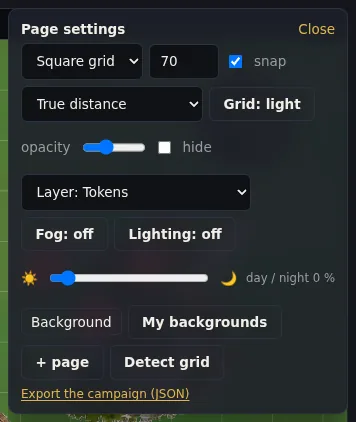 Page settings: background, grid, working layer, fog, lighting, day and night.
The Frame background tool (B) moves the image and resizes it by its corners. Three buttons help: Stretch to map, Proportions (keeps the image ratio), Snap to grid (rounds to squares).
The grid
Square, hex (pointy or flat) or none; square size in pixels; snap so tokens settle on squares. On a light background, switch the grid to dark ("Grid: light / dark") or adjust its opacity.
Distance rule (square grid): true distance, "diagonal = 1 square" (D&D 5e) or "1-2-1 diagonals" (Pathfinder, D&D 3.5). The ruler and token movement use it.
Props
The dock (bottom) and the Props panel offer more than 500 cut-out illustrations: nature, village, castle, water, cave, camp, graveyard, game markers. A prop moves, resizes (Ctrl + wheel) and rotates (Shift + wheel, or its handle) like a token. An "obstacle" prop can also place a wall that blocks sight.
 The dock props, ready to drag onto the map.
Your own prop sheets are cut out automatically in My libraries.
Drawing
The Draw tool (D) has three modes: free stroke, filled area, painted grid squares. The eraser (G) removes a stroke or an area with one click. Everyone sees drawings in real time; the GM can draw on a private layer.
 The Draw tool: colour, stroke or fill, thickness, in the top bar.
Measuring
The Ruler tool (R) measures in squares and metres; Space during a measure adds a waypoint. Dragging a token also traces its path, with the total, visible to the whole table.
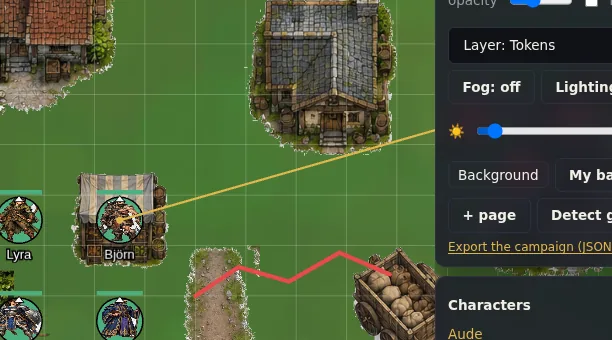 The ruler measures in cells and metres; a token’s path is measured while dragging too.