 STRIPED DICE
First 5 minutes
From creating an account to a first goblin encounter, the GM's path to opening a first table.
Striped Dice is a virtual tabletop in the browser: nothing to install, for you or your players. This guide is written for the GM. A player only has to open the link you send.
1. Create your campaign
From My campaigns, name the campaign and pick a game system among the 21 in the catalogue (D&D 5e, Pathfinder 2, Cthulhu 7, RuneQuest, Fate, Ironsworn...). The system brings the character sheet, its rolls and its compendium. You can also "choose later" and play system-free.
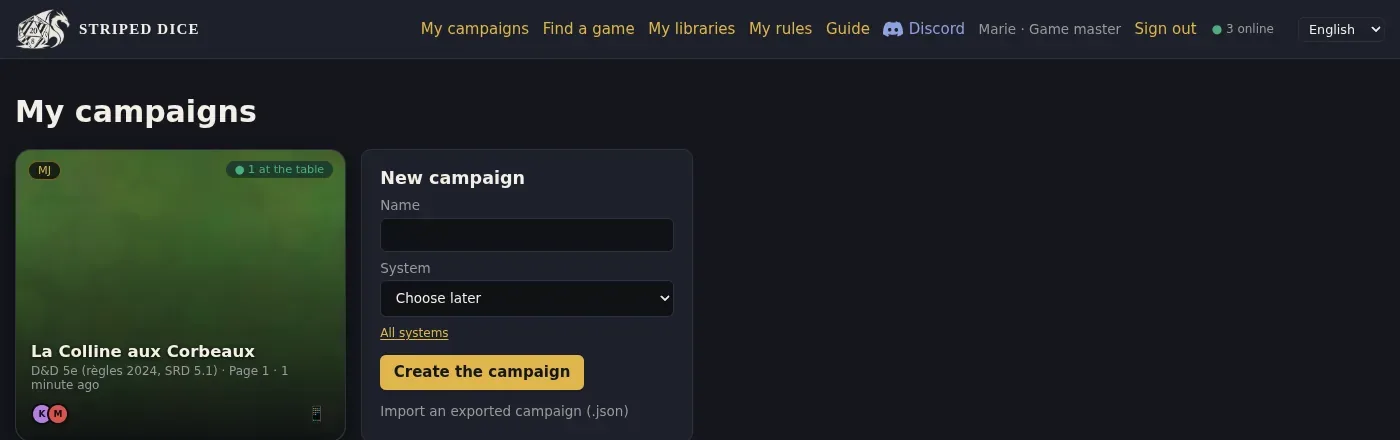 My campaigns: your tables as tiles, and the creation form on the right.
The first time, you are asked to accept the game master charter: that is what gives you the GM role.
2. Set a map
Open the campaign: you are in the room. In the right rail, open Page settings and load a background (a map image). The Frame background tool (key B) moves and resizes it; "Snap to grid" aligns it on the squares.
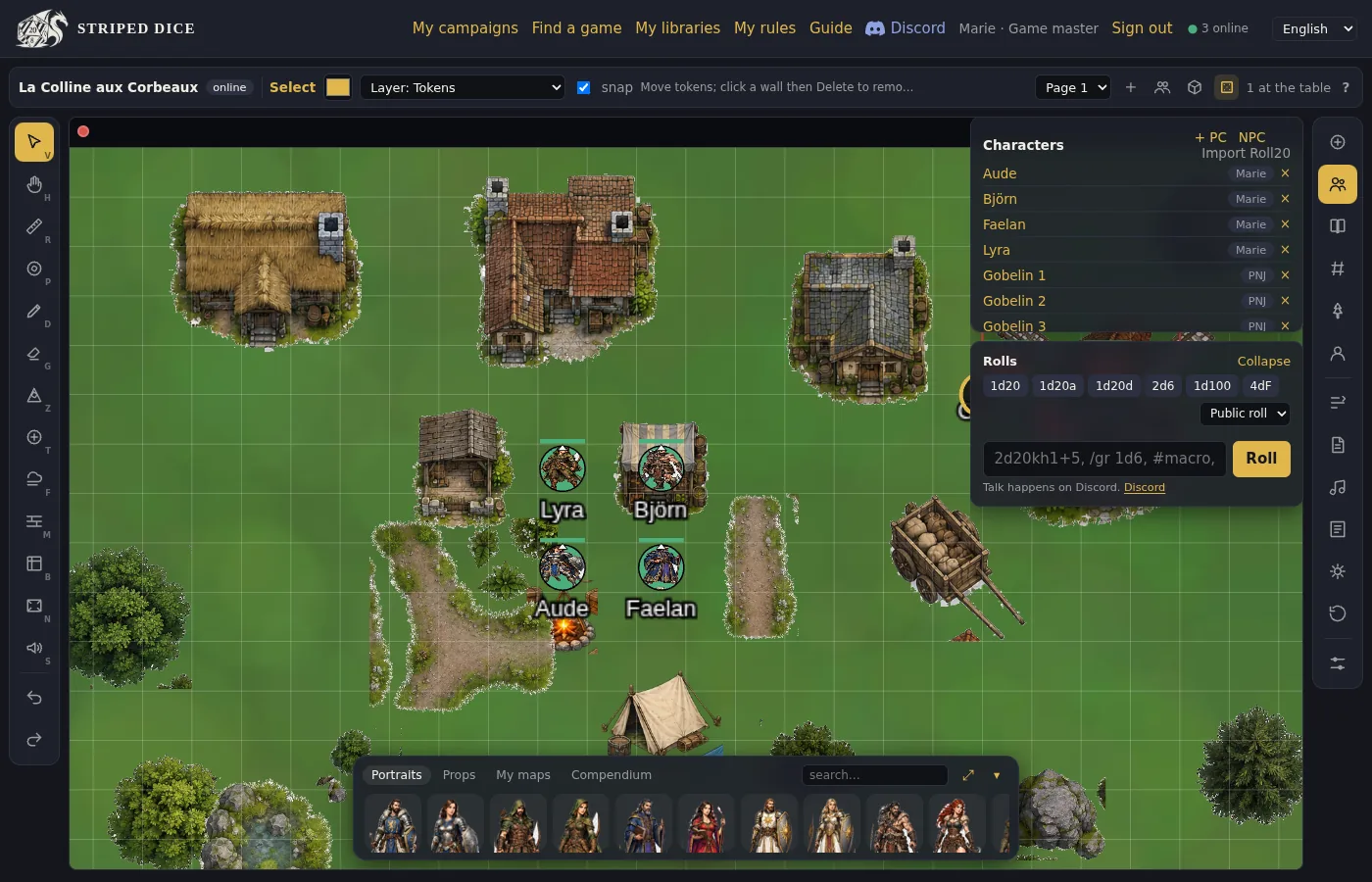 The room: tool rail on the left, panels on the right, thumbnail dock at the bottom.
 The dock, Props tab: a click places at the centre, a drag places where you want.
The dock at the bottom offers ready-made props (trees, houses, rocks, dungeon furniture): a click places one at the centre, or drag them where you want.
3. Add tokens
Still in the dock, the Portraits tab: click a portrait to create a token, or drag it onto the map. The Characters panel (right rail) creates sheets; the Compendium holds the system's monsters: drag a goblin onto the map, it arrives with its sheet and hit points.
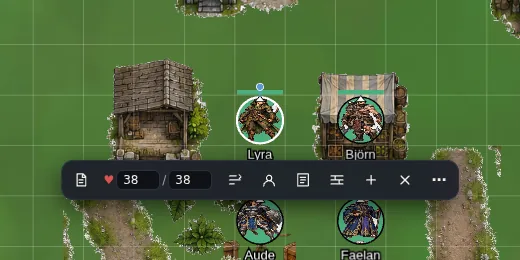 A selected token: sheet, HP, statuses, portrait, lock, initiative, duplicate, delete.
Select a token: the bar under it gives the sheet, HP, conditions, portrait, initiative. Ctrl+D duplicates it (Goblin 2, Goblin 3...).
4. Invite your players
In the top bar, Invitation link creates a link to send to your players. They create a (free) account and land directly at the table. They follow the page you activate.
 The invitation link shows up in the top bar, ready to copy.
5. Roll the dice
The Rolls panel rolls quick dice, or type 1d20+5 in the roll field. That feed only carries rolls and table announcements: talk happens on Discord, not inside Striped Dice. Every sheet has its roll buttons. The roll mode (public, GM, blind, self) decides who sees the result. Turn on 3D dice to watch them roll on the map.
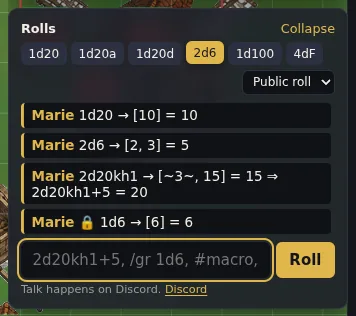 The Rolls panel: quick dice, roll mode and the table feed.
You are ready to play. To go further: fog and lighting, initiative, handouts, music, and your own rules imported from a PDF.