 STRIPED DICE
The room and its pages
How the game room is laid out, a campaign's pages, roles and invitations.
The room
The room is the play screen: the map fills the space, tools are on the left (an icon rail, each with its keyboard shortcut), panels on the right, and the top bar only shows the options of the current tool. Open panels float above the map and can be collapsed.
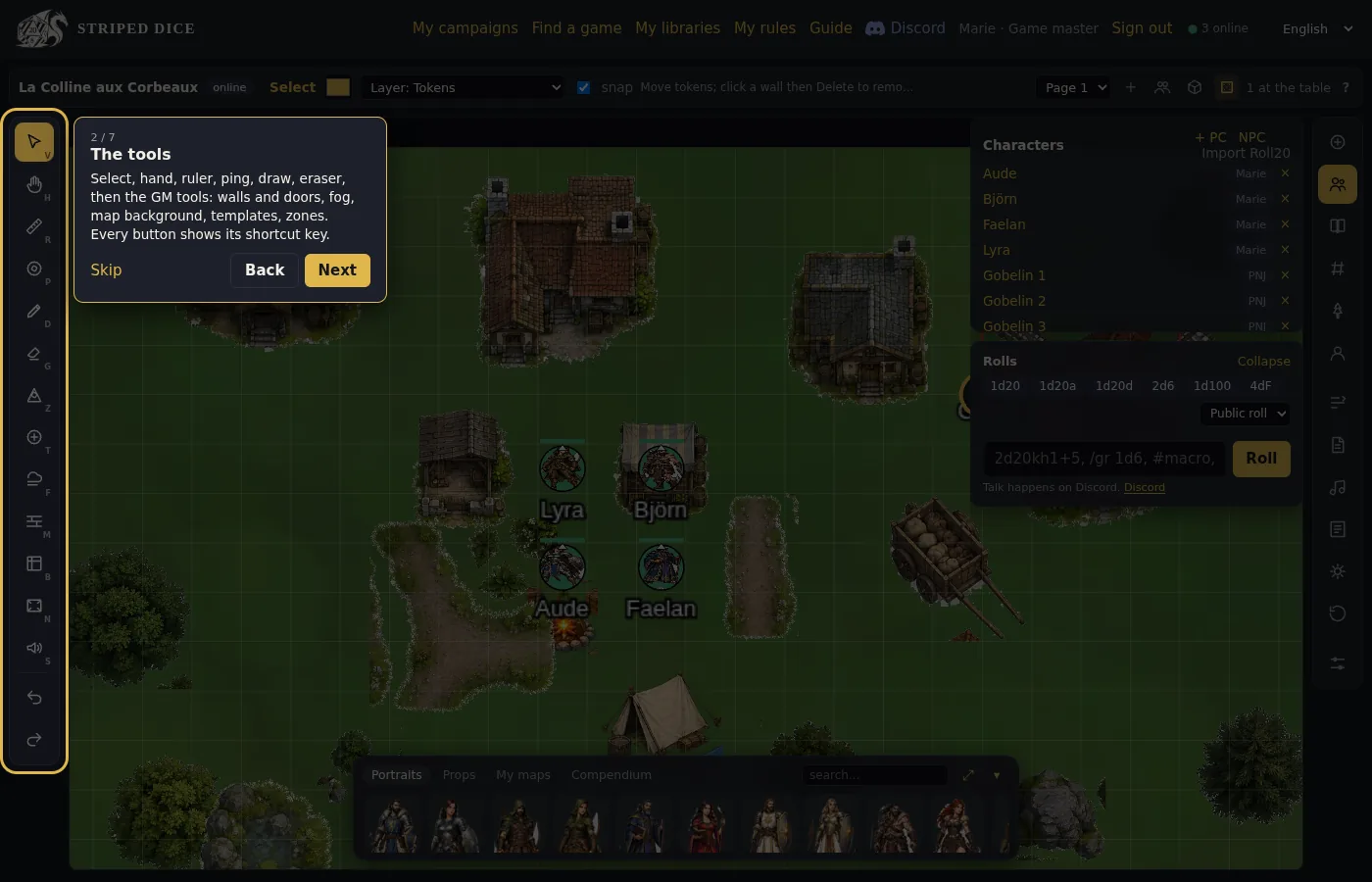 The guided tour presents each area of the screen on first opening.
If you prefer the old button bar, the ☰ button at the right of the bar brings it back (the choice is remembered).
Pages
A campaign has as many pages as you want: one per place, encounter or chapter. The page selector is in the top bar, "+" creates one. Players follow the active page: when you activate another one, they are teleported there.
Each page has its background, its grid (square or hex, square size, snap), its distance rule, its fog and its lighting.
Roles
- GM (or co-GM): sees everything, edits everything, hands out documents, runs initiative.
- Player: moves their tokens, keeps their sheet, rolls their dice, sees what fog and lighting let them see.
- Spectator: watches, without playing.
Inviting
The Invitation link button (top bar) gives a link to share. Each link belongs to its campaign. An invited player joins with the player role; you change roles from the member list.
On a phone
On a narrow screen the room opens as the mobile companion: the sheet, the dice, the roll feed and a read-only map. A "Full table" button brings back the whole room.
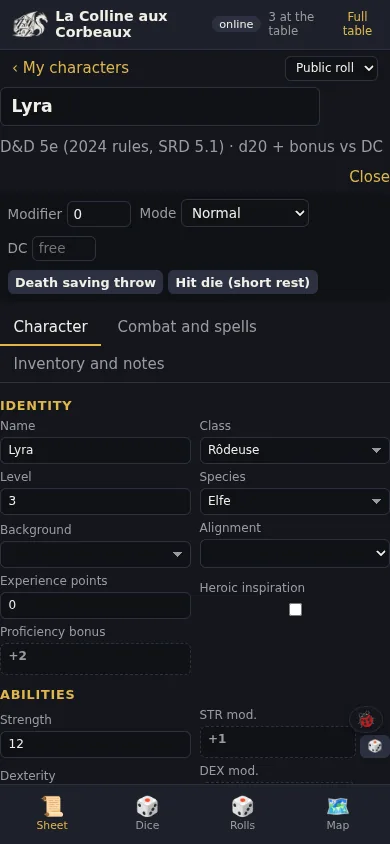 The mobile companion: the character sheet on the phone.
Exporting and importing a campaign
In the Page settings (GM), Export the campaign (JSON) downloads a file with the pages and their maps (tokens, drawings, walls, fog, zones), characters, documents, shared macros, automations, campaign compendium and YouTube jukebox. Members, roll history and uploaded audio files do not travel.
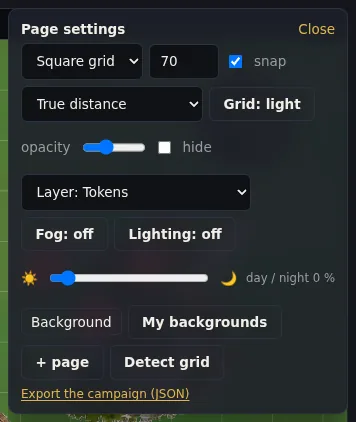 The page settings, with the campaign export at the bottom.
On My campaigns, Import an exported campaign creates a new private campaign with you as GM. Invite your players again and re-share the documents. It is also the way to duplicate a campaign or keep a copy of your own.